How to Delete Songs from Your Apple Music Library in Bulk
On iPhone, the Music app only deletes one song or one album at a time, there is no built-in multi-select delete for individual songs. On Mac, you can select many songs at once in a playlist or the Songs view (Cmd-click or Shift-click), right-click, and choose Delete from Library to remove them all with one confirmation. If you only have an iPhone and want a real bulk workflow, use SongSweep: filter your library by month, Smart Filter, or playlist, tap Select, tick as many songs as you want, and tap Sort Out. That moves them all into a 'SongSweep - Sorted Out' playlist in one action. Open that playlist in the Music app and delete the songs from your library from there, or delete them on Mac with the multi-select method. Either way, the final delete confirmation happens in Apple's own Music app, on iPhone or Mac.
Deleting one song at a time on an iPhone gets old fast once you have hundreds to remove. The honest answer is that Apple's Music app was not built for bulk deletion on iPhone, but it was built for it on Mac, and there is a fast middle path if all you have is your phone.
Here is exactly what is possible on each device, the fastest route on Mac, and how to batch-select on iPhone with SongSweep before you make a single trip to the Music app to confirm the delete.
Can you delete Apple Music songs in bulk on iPhone?
Not directly, no. The Music app on iPhone lets you press and hold a song or an album and tap Delete from Library, but it only works one item at a time. There is no 'select multiple songs and delete' option built into the iPhone Music app itself.
That is a real limitation, not a myth. If your library has 500 songs you never play, deleting them one by one in the Music app on iPhone means 500 individual presses and confirmations.
There are two practical ways around it: switch to a Mac if you have one, or use an app like SongSweep to batch-select the songs on iPhone first and delete them in one visit to the Music app afterward. Both are covered below.
How do you bulk-delete Apple Music songs on Mac?
This is the one place Apple built proper multi-select deletion. Open the Music app on your Mac, go to your library or a playlist, and select every song you want gone before you delete anything.
This works in any list view, not just playlists, so you can sort the Songs view by Plays and select everything with zero plays in one pass if you know what you are looking for.
- Open the Music app and click Songs in the sidebar, or open a specific playlist
- Click the first song, then hold Cmd and click each additional song, or hold Shift and click the last song in a range to select everything in between
- Right-click any selected song and choose Delete from Library
- Confirm the dialog, all selected songs are removed from your library at once, and their downloaded files are removed with them
How do you bulk-delete Apple Music songs on iPhone with SongSweep?
SongSweep gives iPhone the same batch workflow Mac has, just built around review instead of a raw song list. Pick a Smart Filter like Never Played or Forgotten, or a specific month, then decide how carefully you want to look at each song.
If you would rather look at each song before deciding, the swipe flow does the same job one song at a time with a preview: swipe left to sort out, right to keep, up to bookmark for later. It is slower than batch select but you never sort out a song by accident.
- Open a filter, playlist, or month in SongSweep
- Tap Select at the top of the list
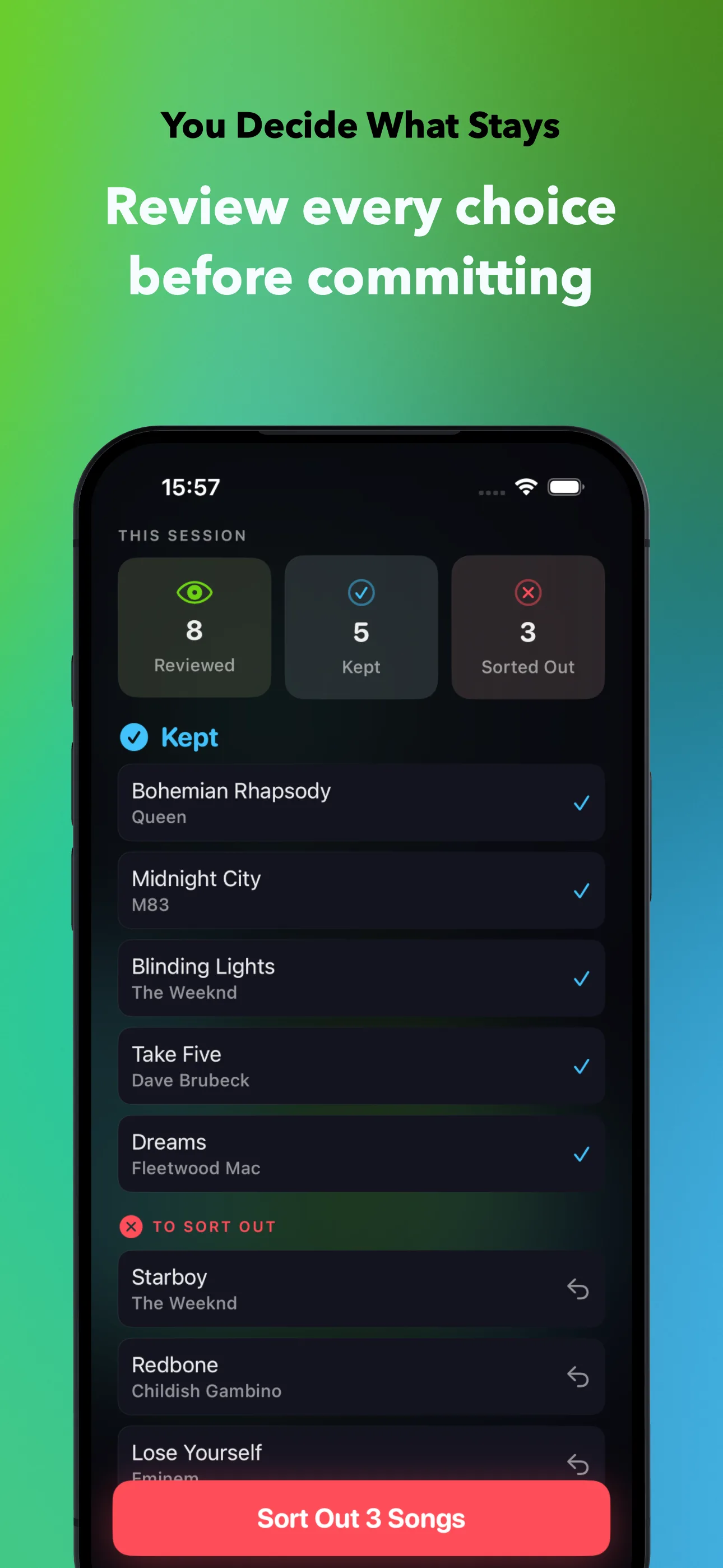
- Tick every song you want gone, a confirmation sheet lists them before anything happens
- Tap Sort Out to move them all into 'SongSweep - Sorted Out' in one action
- Open that playlist in the Music app and delete the songs from your library, or repeat the Mac steps above if you are near a Mac
How do you decide what to delete?
The songs worth clearing out are usually the ones you are least likely to miss. Start with Never Played, songs sitting in your library with zero plays for at least 30 days, and Forgotten, songs you have not played in 12 months or longer, or never played and added over a year ago.
Duplicates are another easy category. If the same song ended up in your library twice, once from an album and once from a single or a Remastered edition, finding and merging duplicates before you bulk-delete keeps you from accidentally removing the version you actually wanted.
For a library that grew mostly by accident, going month by month is often faster than filtering: pick the months where you know you added a playlist you barely listened to, and clear that whole month out at once.
Is it safe to delete a large batch of songs at once?
Bookmark anything you are unsure about instead of sorting it out. Bookmarked songs are set aside for later, separate from your sorted-out list, so batch-deleting your Sorted Out playlist never touches them.
SongSweep supports Undo for the last swipe, but once songs are actually deleted in the Music app, that is Apple's own delete confirmation, not something SongSweep can reverse. Deleting a song from your library also removes any downloaded copy of it.
The safety net: songs stay in the Apple Music catalog even after you delete them from your library. If you change your mind next year, you can search for the song and add it back, you are only removing it from your personal library, not from Apple Music's catalog.
Which method should you use?
There is no single best method, it depends on which device you have in hand and how carefully you want to check each song first. Here is how the four routes compare.
If you are near a Mac, multi-select in the Music app is the fastest way to clear a large batch. If you only have your phone, SongSweep's batch select gets you most of that speed while still showing you what you are about to sort out before it happens. Either way, the delete only happens once you confirm it inside the Music app, see why apps can't delete songs directly for the full explanation of that limit, or head to SongSweep to try the batch flow.
| Method | Device | Bulk? | Preview before deleting? |
|---|---|---|---|
| Music app, single song | iPhone or Mac | No, one at a time | Yes, you see the song before confirming |
| Music app, multi-select | Mac only | Yes, unlimited | Yes, you select from a visible list |
| SongSweep, batch select | iPhone | Yes, per filter or playlist | Yes, confirmation sheet lists songs before Sort Out |
| SongSweep, swipe flow | iPhone | One song at a time, with preview audio | Yes, full song preview before each decision |
Frequently Asked Questions
How do I delete multiple Apple Music songs at once on iPhone?
The Music app itself does not support multi-select delete on iPhone. Use SongSweep to batch-select songs by filter, playlist, or month, tap Sort Out, then delete them from the 'SongSweep - Sorted Out' playlist in the Music app.
Can I select all songs in Apple Music and delete them?
On Mac, yes: open Songs, select all with Cmd-A, right-click and choose Delete from Library. On iPhone there is no select-all delete option in the Music app itself.
Does deleting a song from my library also delete the download?
Yes. Deleting a song from your library removes any downloaded copy along with it. If you only want to free up storage and keep the song in your library, remove the download instead of deleting the song.
Will deleted songs come back if I search for them later?
Songs stay in the Apple Music catalog even after you delete them from your personal library. You can search for a song and add it back anytime, deleting it does not remove it from Apple Music itself.
What is the fastest way to clear out songs I never play?
Use SongSweep's Never Played or Forgotten Smart Filter, tap Select, tick the songs, and tap Sort Out to batch them into one playlist, then delete that playlist's contents from the Music app in one visit.