Why Apple Music Takes So Much Storage (and How to Fix It)
Apple Music storage is mostly downloaded songs, plus a smaller amount of cached streams and artwork. Check Settings > General > iPhone Storage > Music to see the total and a breakdown by artist. A "Disk Full" or "not enough storage" message usually means your downloads have grown bigger than your free space, often because Automatic Downloads is turned on and every song you add to your library downloads itself right away. Quick fixes: turn on Optimize Storage with a minimum amount of free space to keep, turn off Automatic Downloads, delete specific artists from iPhone Storage, or remove all downloads while keeping the songs in your library. None of that solves the actual cause. The real fix is a library that only contains music you listen to: sort out the songs you skip so they are never downloaded again, and if you delete a sorted-out song from your library in the Music app, its download is removed with it automatically.
That "iPhone Storage Almost Full" notification, again. You open Settings and Apple Music alone is taking up 6 or 8 gigabytes. You did not download that much music on purpose, or so it feels.
Here is where that space actually went, the quick ways to get it back, and the one change that stops it from filling up again.
Where does Apple Music storage actually go?
Three things live on your device: downloaded songs for offline playback, cached streams from songs you played recently but did not explicitly download, and album artwork. Downloads are almost always the biggest of the three by far.
You can see the exact breakdown yourself: go to Settings > General > iPhone Storage > Music. It shows the total size and, below that, a list sorted by artist. It is common to find an artist you barely remember still taking up a few hundred megabytes, proof that the number is less about how much you listen and more about how much you once added.
One album is usually somewhere between 80 and 150 MB. A 50-song playlist lands around 300 to 500 MB. Download a few hundred songs over the years and you are easily looking at several gigabytes, most of it music you are not actively listening to.
What does "Disk Full" or "not enough storage" actually mean?
It means your downloaded music, together with everything else on your phone, no longer fits in the space you have. It is rarely one big album that pushes you over; it is usually the slow buildup of downloads you never revisit.
The most common cause is Automatic Downloads. Check Settings > Music > Automatic Downloads: when it is on, every song you add to your library, including whole albums added for one track and songs pulled in from shared playlists, downloads to your device without you asking for it.
So the message is less about your phone being "full" in general and more about Apple Music quietly downloading more than you will ever play. Fixing that is more effective than freeing a few hundred megabytes and seeing the same warning again next month.
Cached streams add a smaller amount on top, since Apple Music briefly keeps recently played songs around for quick replay. They clear themselves automatically as space is needed, so they are rarely the actual reason you see a storage warning.
What are the quick fixes for Apple Music storage?
None of these take more than a minute, and none of them touch your library, only what is stored on the device.
All four are reversible. Removing a download never removes the song from your library, it just streams again the next time you play it. The only downside is that streaming needs a connection, so re-download before a flight or a drive somewhere with no signal.
- Turn on Optimize Storage: Settings > Music > Optimize Storage, then set a minimum amount of free space to keep. iPhone automatically removes older, less-played downloads once you get close to that limit.
- Turn off Automatic Downloads: Settings > Music > Automatic Downloads. New songs you add will stream instead of downloading themselves.
- Delete downloads for one artist: Settings > General > iPhone Storage > Music, tap an artist, then delete. The songs stay in your library, only the offline copy is gone.
- Remove all downloads at once: Settings > Music > Downloaded Music, tap Edit, then the red minus icon next to All Songs. Every song streams again instead of playing from storage.
What actually stops Apple Music from filling up again?
Quick fixes free space today and it refills tomorrow, because the library behind it has not changed. If a third of your songs are ones you skip or never play, and Automatic Downloads is on, you are downloading a third more music than you will ever use.
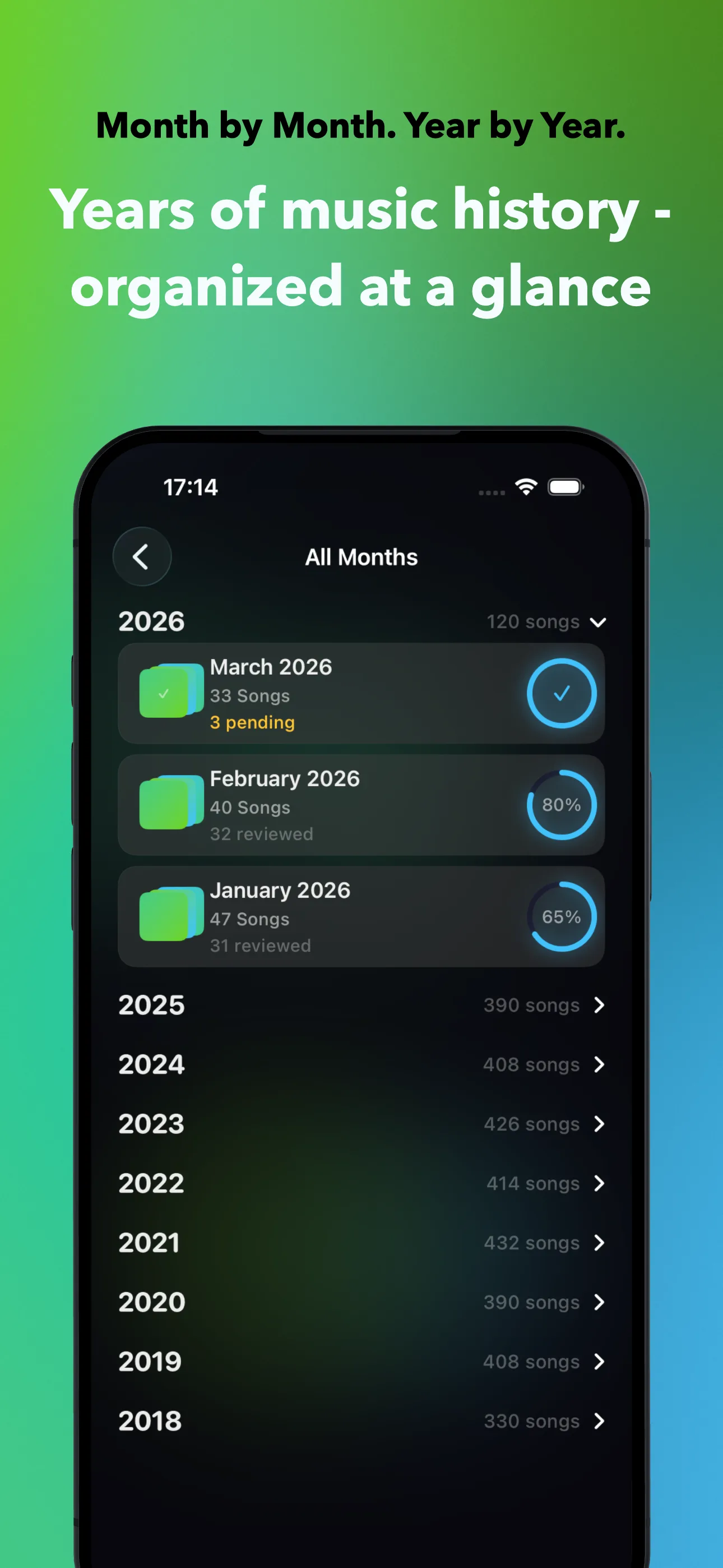
The fix that sticks is a library that only holds music you actually play. Go through it, month by month or with Smart Filters like Never Played and Forgotten, and sort out the songs you skip. Most people get through months of skipped songs in a handful of short sessions, since swiping with a preview is faster than scrolling and long-pressing one song at a time. I cover the full process in how to clean up your Apple Music library, song by song.
SongSweep cannot delete a song from your library, Apple gives no app that ability. What it does is move sorted-out songs into a "SongSweep - Sorted Out" playlist and mark them so they never show up again. Open that playlist in the Music app, select the songs, and delete them from your library there; the download disappears together with the song, so it never re-downloads. That is also the fastest way to fix recommendations that feel off, since sorting out sends a "Suggest Less" rating at the same time.
Quick fix or real fix: which one should you use?
Use the quick fixes when you need space right now. Use the real fix, cleaning the library once and keeping it that way, if you are tired of seeing the same warning every few weeks. Most people end up doing both: a quick fix today, and a proper cleanup over the next week or two.
Prices vary by country, but the Smart Filters that make this practical are free to use; get SongSweep on the App Store.
| Fix | Frees space | Keeps song in library | Where |
|---|---|---|---|
| Optimize Storage | Yes, automatically | Yes | iPhone, Settings > Music |
| Turn off Automatic Downloads | Prevents future growth | Yes | iPhone, Settings > Music |
| Delete downloads per artist | Yes | Yes | iPhone, Settings > iPhone Storage |
| Remove all downloads | Yes, the most at once | Yes | iPhone, Settings > Music |
| Sort out with SongSweep, then delete in Music app | Yes, permanently | No, removed on purpose | iPhone, Music app |
Frequently Asked Questions
Does removing downloads delete songs from my library?
No. Removing a download only deletes the offline copy stored on your device. The song stays in your library and streams normally the next time you play it, and you can re-download it anytime.
Why do I keep running out of storage even after freeing space?
Because the songs that filled it up in the first place are probably still in your library and still downloading. If Automatic Downloads is on, every song you add downloads again, including ones you never actually play. Turning off Automatic Downloads or cleaning your library stops the cycle.
What is Optimize Storage and should I use it?
Optimize Storage, found in Settings > Music, automatically removes older or less-played downloads once you get close to a free-space limit you set. It is a good safety net, but it works around the problem rather than fixing it, since your library still contains songs you never listen to.
Does deleting a song from my library also delete its download?
Yes. If you delete a song from your Apple Music library in the Music app, its downloaded copy is removed at the same time. Deleting only a playlist that contains the song does not delete the song itself or its download.
How much storage does an average Apple Music library use?
It depends entirely on how many songs you have downloaded, since streamed songs use no permanent storage at all. One song is roughly 5 to 10 MB, so 500 downloaded songs land around 3 to 5 GB. Check Settings > General > iPhone Storage > Music for your exact number.