How to Clean Up Your Apple Music Library, Song by Song
Cleaning an Apple Music library means finding the songs you never listen to and removing their influence, not just deleting files. Apple Music has no delete API for third-party apps, so the process happens in two stages. First, review your library in smaller pieces: start with never-played songs, then work month by month through the rest, using bulk actions once you spot a pattern. Second, actually delete what you sorted out inside Apple's own Music app, since only Apple's app can remove a song from your library. A swipe-based session works fastest: keep a song, sort it out, or bookmark it for later, with a preview so you never guess. Sorting out a song moves it to a dedicated playlist, tells Apple Music to suggest less like it, and hides it from future sessions. A library of a few thousand songs takes a handful of short sessions, then one bulk delete in the Music app.
You have been adding music to your Apple Music library for years, and most of it happened without you really deciding. An album you liked for one song. A playlist a friend shared once. Apple's own "Add Playlist Songs" setting, which quietly imports tracks you never asked for. Now half of what's in your library gets skipped every time it comes up.
There is a realistic way to clean this up, and it does not involve deleting everything and starting over. It takes a method, a bit of patience, and knowing exactly what Apple Music will and will not let you do.
Why does an Apple Music library get messy in the first place?
Most people do not add songs one at a time. You add a whole album because you liked the single. You accept a shared playlist because it looked fun on a Friday night. Apple Music's "Add Playlist Songs" setting goes further and copies every song from a playlist into your library automatically, without asking.
Over a few years, that turns a curated collection into something closer to a storage unit. Songs from a phase you have moved past sit next to music you actually listen to every week. None of it is sorted, so the Music app treats all of it as equally "yours".
That matters more than it sounds. Apple Music's recommendations, covered in more detail in why Apple Music recommendations go bad, learn from everything sitting in your library, played or not. A messy library does not just look bad, it actively confuses what gets suggested to you.
What's a realistic way to actually clean it up?
Staring at a library with 3,000 or 8,000 songs and deciding "keep or not" for each one is exhausting, and most people quit after ten minutes. The trick is breaking it into pieces that feel doable in one sitting.
Start with what you never listen to, not with what you might want to remove. Songs with zero plays are the easiest, safest cuts, since you have no attachment to them yet. Then work by month added, so you are only ever looking at one specific stretch of time, not your whole history at once.
Here is the order that actually works for most libraries:
- Start with never-played songs, since these are safe, low-effort cuts
- Move to songs you have not played in a year or more, the ones you likely forgot you had
- Go month by month through the rest, oldest additions first
- Use bulk actions on entire playlists or artists once you spot a pattern
- Do one final pass on anything you bookmarked "for later" during earlier sessions
What actually happens when you sort out a song in SongSweep?
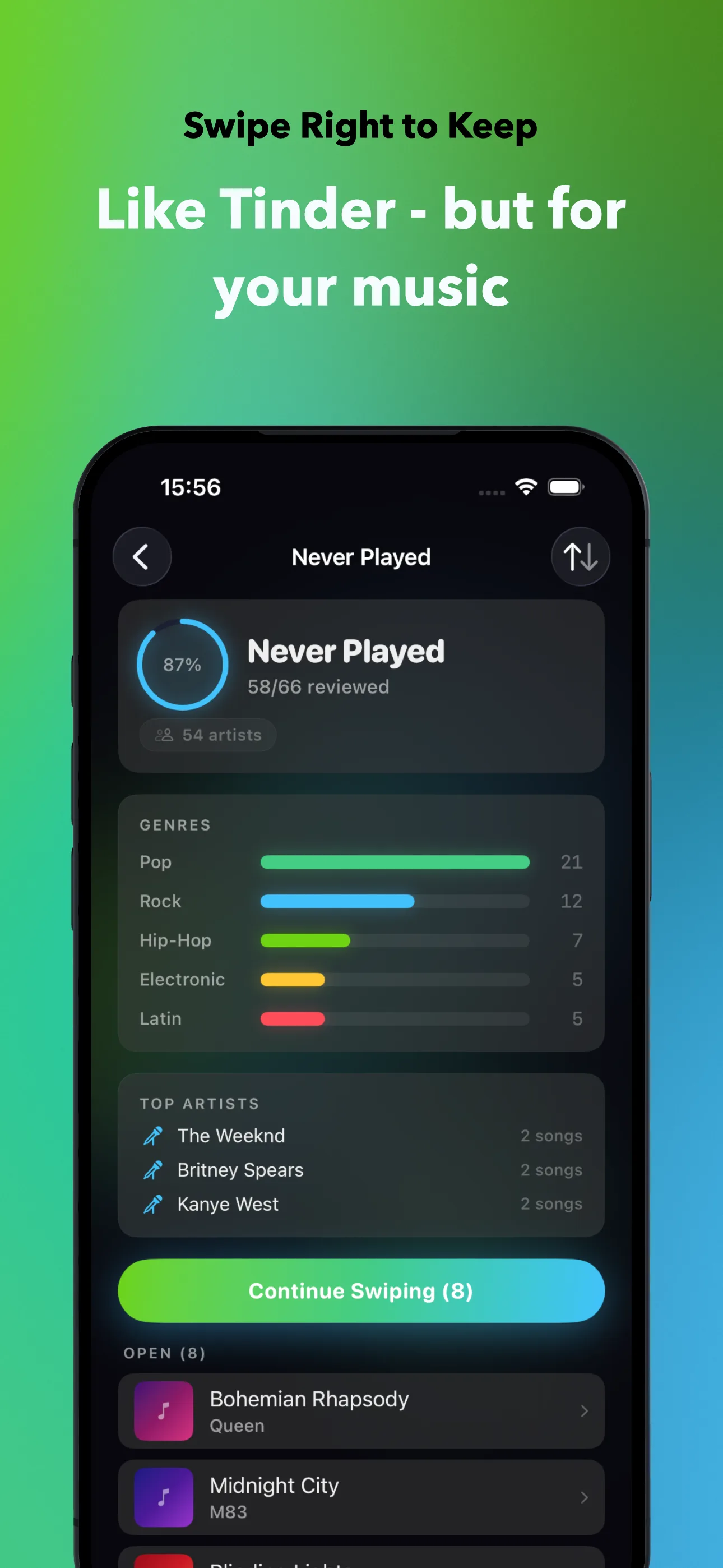
This is the part most cleanup guides skip, because most of them are not written by someone who built the tool. When you swipe right, nothing changes in Apple Music. The song is simply marked as reviewed so it does not show up again.
Swipe left to sort out a song, and three things happen at once: the song is added to a playlist named "SongSweep - Sorted Out", a "Suggest Less" rating is sent to Apple Music through Apple's own ratings API, and the song is marked inside the app so it never appears in a future session.
Swipe up to bookmark a song for later if you are not sure yet, and every song can be previewed before you decide anything. If you change your mind on the last swipe, undo brings it right back.
How do you actually delete the songs afterward?
Here is the part Apple does not make obvious: no app on your phone, including SongSweep, can delete a song from your Apple Music library. MusicKit simply does not expose a delete function to third-party apps, a limit covered in more detail in why apps can't delete songs from Apple Music.
So the actual deletion happens in Apple's own Music app. Open the "SongSweep - Sorted Out" playlist, select the songs, and choose Delete from Library (press and hold a song on iPhone, or select all and delete on a Mac). Downloaded files are removed together with the song, so there is no separate storage cleanup step.
If you would rather remove hundreds of songs in one sweep instead of scrolling through a playlist, deleting songs from Apple Music in bulk covers the fastest way to handle that final step.
What should you not do?
Do not mistake removing downloads for cleaning your library. Settings > General > iPhone Storage > Music lets you delete downloaded files, and it frees up space right away, but the songs stay in your library and keep shaping your recommendations. It solves a storage problem, not a library problem.
Do not try to review your entire library in one sitting either. It is the single biggest reason people give up on library cleanup halfway through. A smaller, repeatable session beats one exhausting afternoon.
How long does this actually take?
For a library around 1,000 to 2,000 songs, expect two or three short sessions to get through the never-played and forgotten songs, plus one pass in the Music app to actually delete what you sorted out.
Larger libraries, 5,000 songs and up, take longer, but not because any single step is hard. It is just more songs. Going month by month and leaning on bulk actions keeps each session short even if the whole project spans a couple of weeks.
Once it is done, it stays done. New songs only pile up if "Add Playlist Songs" keeps auto-importing everything, so it is worth checking that setting once you finish your first real cleanup. If you want to try the swipe method yourself, SongSweep has the details.
Frequently Asked Questions
Can I delete songs directly from my Apple Music library with a third-party app?
No. Apple's MusicKit framework does not give any third-party app the ability to delete a song or remove a track from a playlist. You always finish the actual deletion inside Apple's own Music app.
What does 'Suggest Less' actually do?
It tells Apple Music's recommendation system to show you less of that song and similar music in "For You" and autoplay. It does not remove the song from your library, it only changes what gets suggested to you going forward.
Will deleting downloaded songs clean up my library?
No. Deleting a download only removes the offline file and frees up storage. The song stays in your library and keeps affecting your recommendations until you actually sort it out and delete it from the library itself.
How do I find songs I have never played?
Apple Music does not have a built-in filter for this, but SongSweep's Never Played smart filter finds songs with zero plays that have been in your library for 30 days or more, so you can review just those first.
Does SongSweep delete songs automatically?
No app can, including SongSweep. It moves songs you sort out into a dedicated playlist and marks them as "Suggest Less", but you still delete them yourself in the Music app when you are ready.